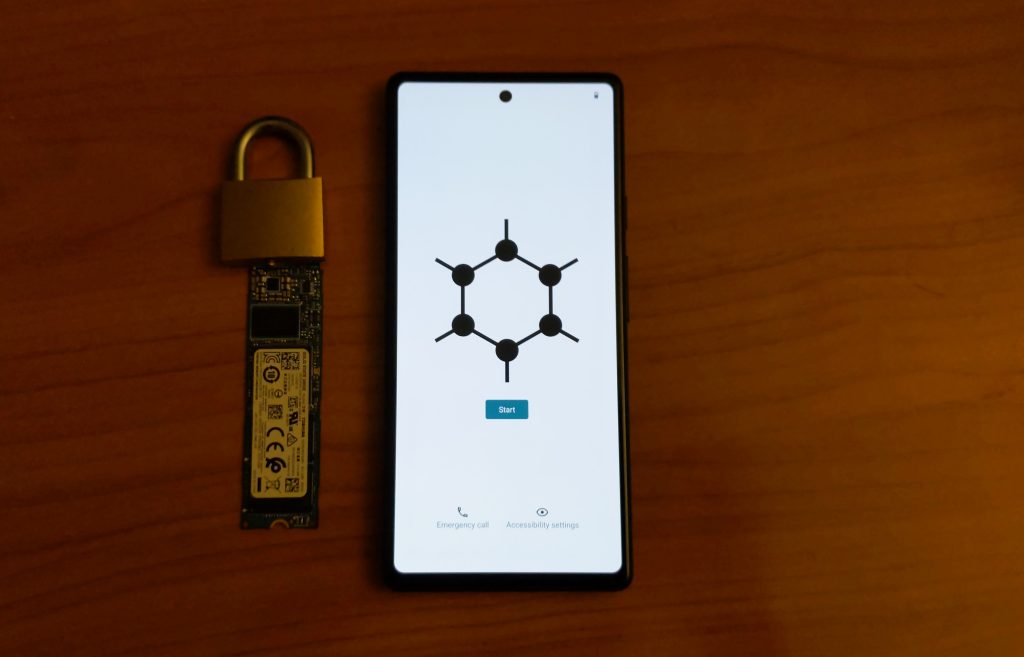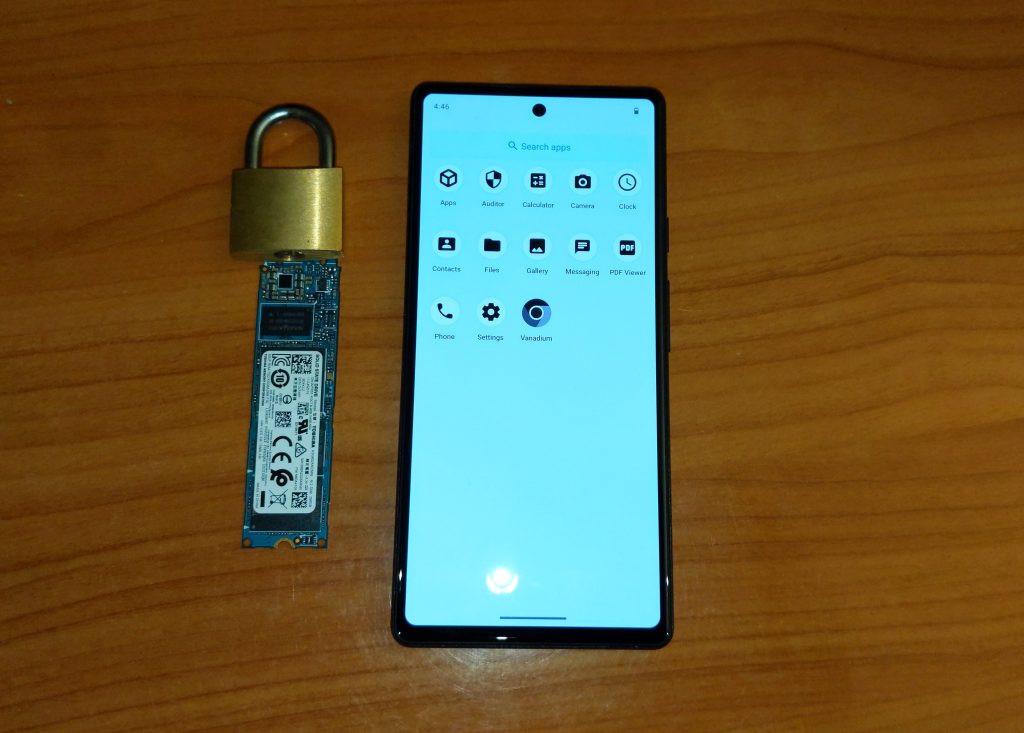
These device-specific instructions cover installing GrapheneOS on a Google Pixel 6a using a Windows PC and the command-line installation method.
Before you begin
Download the following files:
- ADB/Fastboot
- GrapheneOS
- Google USB Driver. Extract the ZIP, right-click the
.inffile, and select Install.
Prepare the working folder:
- Extract
platform-tools_XXX.X.X-windows.ziptoC:\ADB. - Extract
bluejay-factory-xxxxxxxxxx.ziptoC:\ADB. - Find
image-bluejay-xxxxxxxxxx.zipinside the extracted factory-image folder and extract its contents toC:\ADBas well.
Enable OEM unlocking
OEM unlocking must be enabled before the bootloader can be unlocked.
- Open Settings > About phone.
- Scroll to Build number and tap it seven times, or until Android confirms that developer mode is enabled.
- Open Settings > System > Developer options > OEM unlocking, then enable it.
If OEM unlocking is greyed out on your device
- Connect the Pixel 6a to the internet.
- Open Settings > System > System update.
- Install the first critical system update and reboot.
- Check OEM unlocking again. If it is still unavailable, continue below.
- Remove the SIM card and connect the phone to Wi-Fi.
- Open Settings > System > Reset options.
- Select Erase all data (factory reset).
- Complete setup after the reset and connect to Wi-Fi.
- Reboot the phone, then check OEM unlocking again.
Install GrapheneOS
This section uses the command-line installation method.
-
Power off the Pixel 6a.
-
Hold Volume Down + Power to enter Fastboot Mode.
-
Connect the phone directly to the computer with a reliable USB data cable.
-
Open Command Prompt and enter:
C:\ cd C:\adb fastboot devices fastboot flashing unlock -
On the phone, use the volume buttons to select Unlock the bootloader, then confirm with the Power button.
-
In Command Prompt, run:
flash-all.bat
If flash-all.bat fails
-
Open
flash-all.batin a text editor. -
Delete everything above the first line that starts with
fastboot flash. -
Save the file.
-
Return to Step 6 and run
flash-all.batagain. -
When
flash-all.batfinishes and returns to the prompt, enter:fastboot flashing lock -
On the phone, use the volume and power buttons to select Lock the bootloader.
-
Select Start to boot the phone.